
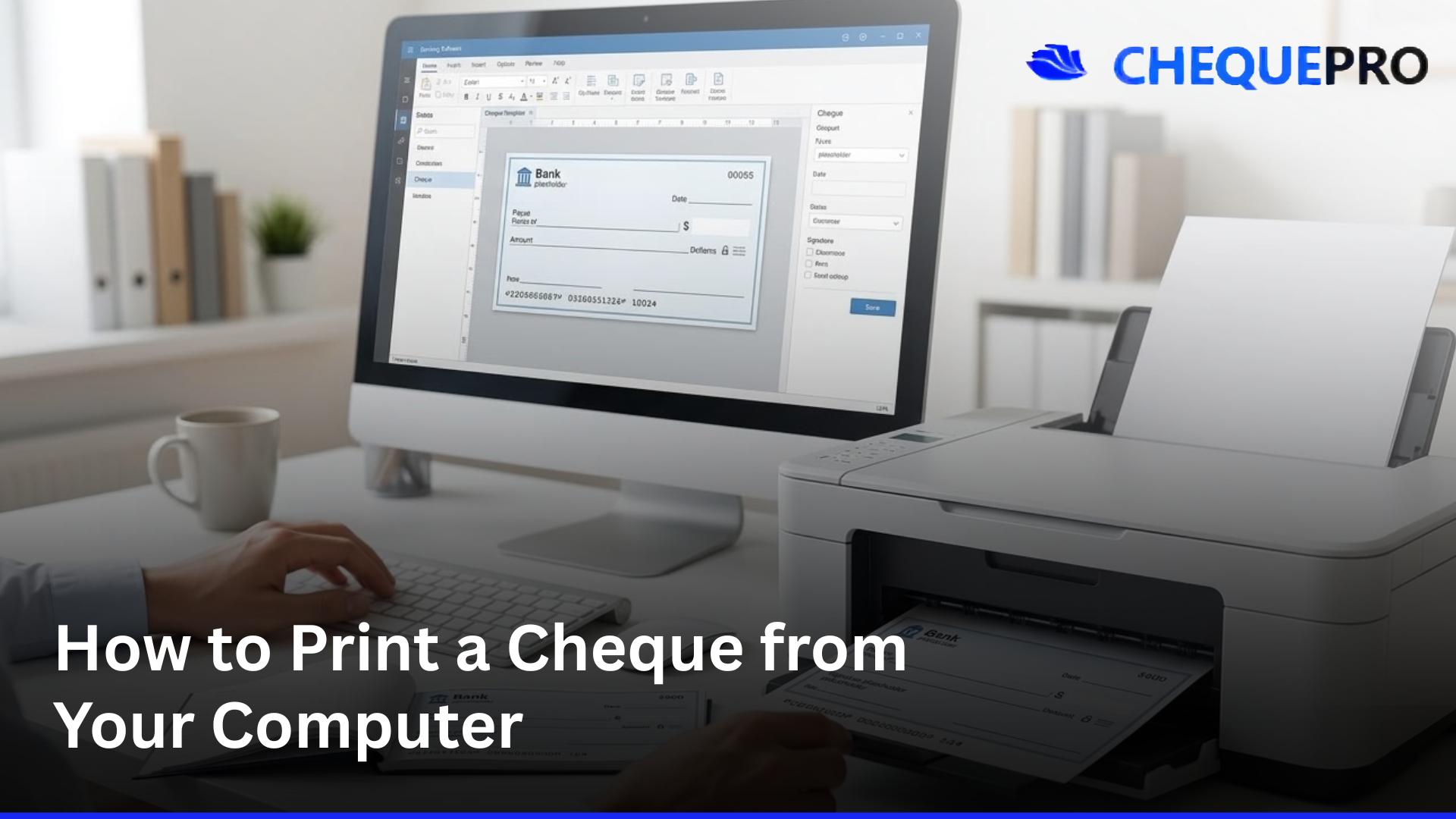
How to Print a Cheque from Your Computer

Aakash Anand
Finance Technology Specialist
To print a cheque from your computer: install cheque printing software, select your bank's template (or align a new one to your chequebook), enter the payee, amount, and date (the amount in words is generated automatically), then load your chequebook into any standard printer and print. The whole process takes about five minutes the first time and ten seconds per cheque after that. No special printer, no special paper, and no signing changes; you still sign the printed cheque by hand at the end.
Quick answers
- Do I need a special printer?
- No. Any standard laser, inkjet, or deskjet printer works.
- Do I need special cheque paper?
- No. You print directly onto your existing bank chequebook.
- How long does setup take?
- About five minutes the first time. Every cheque after that takes ten to twenty seconds.
- Is the signature printed?
- No. You sign by hand after printing. Everything else is printed for you.
Why print cheques from your computer at all?
Even with bank transfers, UPI, NACH, and other electronic payment systems, businesses across the UK, the Gulf, India, Southeast Asia, and Africa still issue cheques regularly. They're used for vendor payments, salaries, rent, statutory remittances, refunds, and any payee who hasn't moved to instant electronic transfer.
The painful part is filling them by hand: writing the payee, the date, the amount in figures, and the amount in words, ten or twenty times in one sitting, with one small slip turning a valid cheque into a void one. Banks return cheques for amount-in-words mismatches and overwriting routinely, costing both parties return fees, and on CTS-2010 cheques in most markets, you can't even correct a mistake with initials; you have to void the leaf and start again.
Printing cheques from your computer removes that whole class of error. The amount in words is generated from the figures automatically (with no spelling mistakes, no inconsistencies), the alignment to your bank's exact layout is set once, and every cheque after that prints cleanly. Most finance teams that switch save two to three hours per payment cycle and stop using their backup chequebook entirely.
What you'll need before you start
Three things: a computer (Windows for ChequePro, since it's a desktop product), your existing bank chequebook (no need to order anything special), and a printer. Almost any printer works (laser, inkjet, deskjet, even an old multi-function printer in your office) because the cheque is printed onto a normal cheque leaf rather than special MICR check stock. The only ongoing supply is the cheques themselves, which you already have from your bank.
Step 1: Install cheque printing software
You need software that knows what a cheque is and how your bank lays one out. ChequePro is the most widely used cheque printing software, with templates pre-built for hundreds of banks across 50+ countries; it has a free version that prints real cheques and a one-time paid licence with no subscription. Download it, run the installer, and launch it. The whole installation takes about a minute. On first launch, you'll be asked for your country and bank; this lets ChequePro show you the right template immediately.
Step 2: Pick or build your bank template
Most major banks come pre-built. Pick your bank from the list and you're done with this step. For UK banks, see the UK page; for UAE banks, UAE; for Saudi Arabia, Saudi; for India, ChequeGuru, the India edition, has 100+ Indian bank templates at chequeprintingsoftware.com. For other markets see the full list on our features page.
If your bank isn't pre-built, ChequePro has a WYSIWYG alignment engine: import a scan or photo of one of your cheques, drag each field (date, payee, amount in words, amount in figures, signature box) to the right position over the cheque image, and save. The whole process takes about five minutes per bank, and you only do it once. After that, every cheque on that bank prints in alignment automatically. This is what makes it possible to support 'any bank' rather than only the banks the vendor happens to ship templates for.
Step 3: Enter the payment details
For each cheque, you fill in three or four things:
- The payee name: the full legal name of the person or company you're paying, spelled exactly as it appears on their bank account.
- The amount in figures: the software writes the amount in words for you, including the correct currency.
- The date: defaults to today; change it for post-dated cheques.
- Optionally, a memo or reference for your own records.
If you've issued a cheque to this payee before, you can pick the name from the saved list rather than retyping. Most cheques take ten to twenty seconds per entry.
Step 4: Fine-tune alignment (only the first time)
The first time you print a cheque on a specific chequebook, you may need to nudge the alignment by a millimetre or two so the printed text sits exactly inside the bank's printed boxes. The print preview shows you what will print where; the alignment engine lets you drag a field to the right position visually. Save, and from the next cheque onwards every print lines up perfectly. You only do this once per bank, not per cheque.
Practical tip: print your first cheque on a plain piece of paper at the same size as a cheque leaf, hold it against an actual cheque against a window, and check the alignment before printing on a real cheque leaf. You waste paper, not cheques.
Step 5: Load your chequebook and print
Put your cheque leaf into the printer in the orientation the preview shows (usually face-up, with the printable side facing the print head). Most modern printers handle a single cheque leaf in the manual feed tray or the main tray; older printers may need the leaf gently fed through. Print. The cheque comes out with the payee, date, amount in figures, amount in words, and any standard crossing marks (like 'A/c Payee' if you've enabled it). Sign it in the bottom right by hand and the cheque is ready to issue.
For batch printing of many cheques (payroll, vendor runs), load your chequebook in sequence and the software prints in cheque-number order so reconciliation stays clean. Stick with one chequebook per batch to avoid mixing sequences.
What gets printed and what doesn't
Everything except the signature is printed: the date, the payee name (with a strikethrough on any leftover space, so nothing can be added later), the amount in figures inside the box, the amount in words ending with 'Only' and a strikethrough, and any standard crossing marks. The signature is intentionally left for you to sign by hand, because banks verify signatures against your specimen, which is your handwritten signature. A printed signature would defeat the entire signature-verification system. So the cheque does all the boring work for you and leaves the one thing that matters, the signature, where it should be: in your hand.
Choosing the right printer
Almost any printer works. To be more specific:
If you are moving from a dedicated cheque writer machine to software, any of the printers below replaces the machine entirely.
- Laser printers: the best choice for a clean, professional finish, especially for batch printing. Toner doesn't smudge if the cheque gets wet briefly.
- Inkjet printers: work well for occasional cheques. Use waterproof or pigment inks if your cheques might be handled in humid environments or by anyone with damp hands.
- Deskjet and multi-function printers: also fine.
- Dot-matrix printers: still used in some legacy environments and work too.
The main thing is the paper path: the printer needs to feed a single cheque leaf cleanly. Most office printers do this through the manual feed tray. If you print a lot of cheques, a small dedicated laser printer with a flexible paper path is the standard choice and costs roughly the same as a year of subscription cheque software.
Pre-printed cheques vs blank cheque stock
There are two ways to print a cheque, and what your bank gives you decides which:
- Pre-printed cheques (the standard in the UK, the Gulf, India, and most cheque-using countries): your bank issues a chequebook with the bank name, account number, MICR line, and routing details already printed. The software only fills in the payee, date, and amount. This is what 99% of users in cheque-spelling markets do.
- Blank check stock (mostly used in the US, which is a different market with different conventions): the software prints everything including the bank details and MICR line onto blank security paper, and the user supplies their own MICR toner cartridge.
If you're in the UK, the Gulf, India, Singapore, Malaysia, Hong Kong, the Philippines, Kenya, Nigeria, or anywhere else that uses 'cheque' rather than 'check', you'll be using pre-printed cheques from your bank. There's nothing to buy. Just your chequebook.
Common mistakes when printing cheques (and how to avoid them)
Six things to watch for, all easy to avoid:
- Printing in the wrong orientation. The cheque comes out backwards or upside down because the leaf was loaded face-down. Check the preview before printing on a real cheque; do a paper test first.
- Misaligned fields on the first cheque. The amount lands one centimetre too high or too low. Use the alignment engine to nudge it once; thereafter it's perfect.
- Date in the wrong format. Most countries use DD/MM/YYYY, but US-style MM/DD/YYYY is the default in some software. Check the date setting matches your bank's expectation.
- Mismatched amount in figures and words. With computer printing, this shouldn't happen, because the software derives one from the other. If you see a mismatch, you've manually overridden the words; don't.
- Printing on the wrong cheque leaf. Tearing cheque 1042 from your chequebook and printing cheque number 1041 on it breaks your numerical sequence. Sync the software's cheque number with the actual leaf you load.
- Skipping the alignment check on a new chequebook. Bank cheque layouts occasionally change between chequebook orders. When you get a new chequebook, do a quick paper test on the first leaf to confirm the alignment still holds.
Security: are printed cheques safe?
Printed cheques are at least as secure as handwritten cheques, and in some ways more so. Specifically:
- Printed text is harder to alter than handwriting. There's no overwriting, no different-coloured pen, no convenient gap in the words to add a zero.
- Many cheque printing systems include built-in security features: asterisks before and after the amount in words to prevent additions, a clear strikethrough on the payee line, and 'A/c Payee' crossing applied to every cheque automatically.
- Print history is logged. You have a record of every cheque printed (who, when, payee, amount), which means an unauthorised cheque from your chequebook is traceable.
- The signature stays handwritten, which is what your bank actually verifies.
The main security risk with any cheque (printed or hand-filled) is loss or theft of the chequebook itself, and that risk is the same either way. For high-value payments, always cross the cheque 'A/c Payee' so it can only be credited to the named payee's account, never encashed in cash.
Printing cheques for many banks or companies at once
For businesses that manage multiple bank accounts, multiple companies, or multiple users:
- Multiple bank accounts: most cheque printing software handles this with a bank-account switcher. Pick the bank when issuing the cheque; the software uses that bank's template and tracks the cheque against that account.
- Multiple companies: for accountants and finance teams running several entities, you create a separate company profile per entity and switch between them.
- Multiple users: ChequePro and similar tools support per-user logins with role-based permissions, so junior staff can prepare cheques while only authorised signatories release them. This is also how you maintain a clean audit trail of who did what.
The setup takes a bit longer the first time, but once configured, switching between contexts is a single click.
Cheques in your country: country-specific guides
Cheque conventions vary by country: the currency in words, the date format, the typical layout, and the regulatory framework. We have detailed pages for the markets we serve most:
- United Kingdom (GBP, Image Clearing System)
- Gulf: UAE, Saudi Arabia, Qatar, Kuwait, Bahrain, Oman
- Asia: Singapore, Malaysia, Hong Kong, Philippines, Sri Lanka
- Africa: Kenya, Nigeria
- India is served by ChequeGuru, the India edition with 100+ Indian bank templates and pricing in INR at chequeprintingsoftware.com.
Try it free, then decide
The cheapest way to find out whether printing cheques from your computer fits your workflow is to try it on a real cheque. Download the free version of ChequePro, print one cheque on a paper test, then one on a real leaf, and see how it feels. The free version is fully functional for the most-used cheque formats, with no credit card and no trial expiry. If it saves you time, upgrade to the one-time paid version (no subscription) when you're ready. Most teams know within their first batch.
Coming soon: Cheque Printing Software Comparison: How to Choose · Cheque Bounce Reasons · MICR vs IFSC vs SWIFT Explained · Bulk Cheque Printing for Payroll
Frequently asked questions
- No. Any standard laser, inkjet, or deskjet printer works. You don't need MICR toner unless you're printing US check stock onto blank security paper, which most markets don't use.
- No. You print directly onto your existing bank chequebook. The bank has already pre-printed the bank name, MICR line, and routing details; the software only adds the payee, date, and amount.
- No, never. The signature is intentionally left for you to sign by hand after printing, because banks verify signatures against your specimen.
- About five minutes the first time, including aligning the template to your specific chequebook. Every cheque after that takes ten to twenty seconds.
- Yes, every major bank does. A printed cheque is still a normal cheque, with your handwritten signature at the bottom; it's clearer and harder to alter than a hand-filled one. Banks process printed cheques the same way as handwritten ones.
- Yes. The software prints onto whatever cheque leaf you load, including multicity, at-par, and standard cheques.
- If you spot a mistake before signing, void the leaf, mark it, and use a fresh one. After signing and issuing, it's a real cheque and follows the usual stop-payment process if you need to halt it.
- Yes. ChequePro's free version prints real cheques with no credit card. Paid versions are a one-time purchase, never a subscription.
Tags:
Aakash Anand
Finance Technology Specialist
Aakash writes about payment operations, cheque processing, and banking software across the UK, Gulf, and Asia markets. He has covered cheque printing workflows for over a decade.